 RepeatMe
How to share a deck with a student or with everyone
You can hand a deck to one student by link or publish it to the catalogue for everyone. You will need a deck of your own with at least one card in it.
Choose who can see the deck
Visibility is set when you create a deck and can be changed at any time in its settings.
- Private — only me. The deck gains no new readers: the link stops opening and it is not in the catalogue. Anyone who subscribed earlier keeps their access: privacy closes the door, it does not evict the people already inside.
- By link — anyone with the link. The deck opens at its address, but it is not in the catalogue and does not turn up in site search. This is the mode for teaching: you decide who gets the address first. After that it can be forwarded, as there is no separate list of who is allowed.
- Public — listed in the catalogue. The deck joins the shared catalogue, where it is found by language and tags.
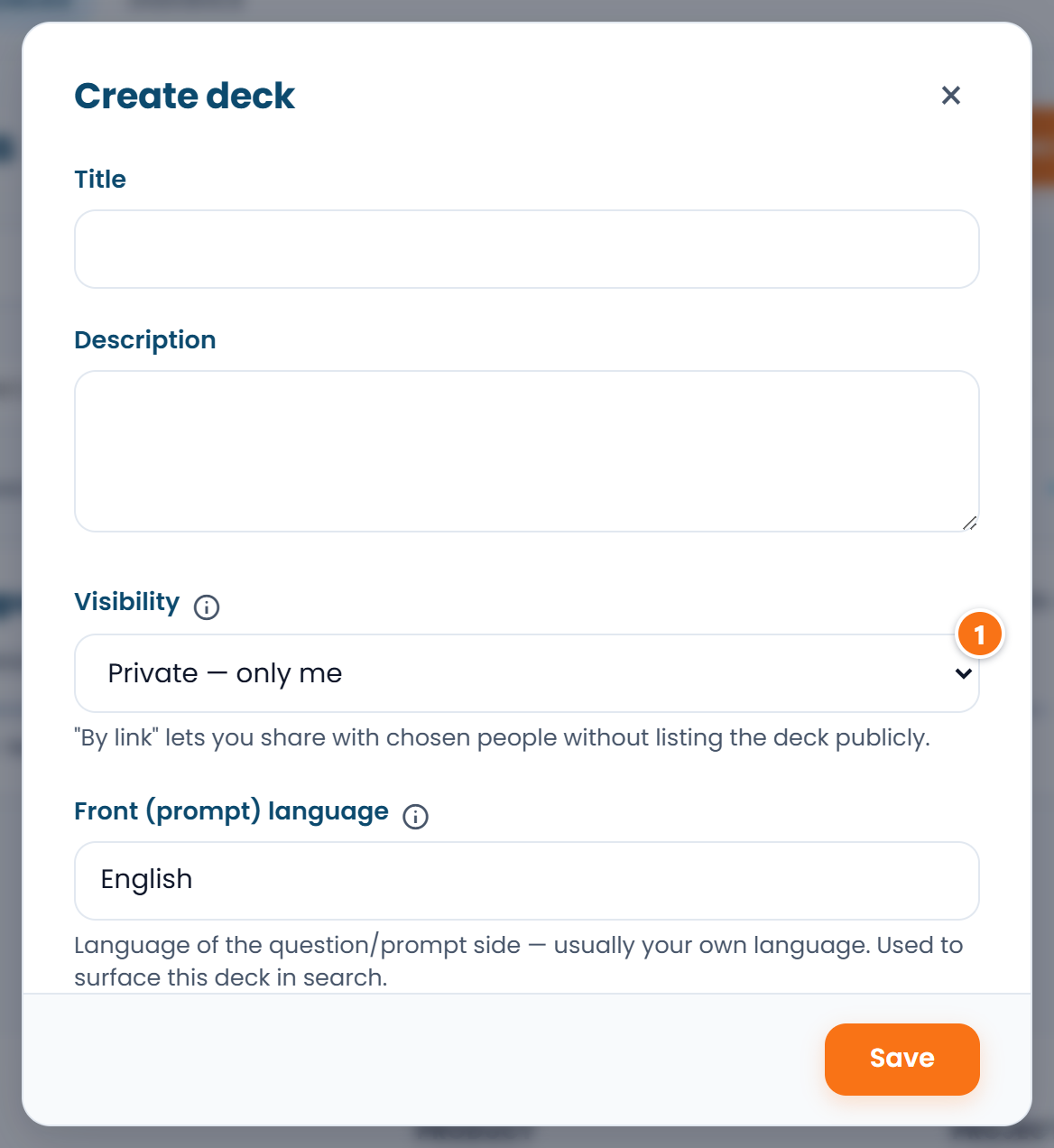 ① — the visibility list. A new deck is private by default.
A private deck is the one thing you cannot share: Share on it offers to change the visibility first.
Give a student the link
- Set the deck's visibility to By link — anyone with the link if it is still private.
- Open the deck and press Share.
- Press Copy link: the label changes to "Copied". Send the address to your student however you like: it does not expire on its own.
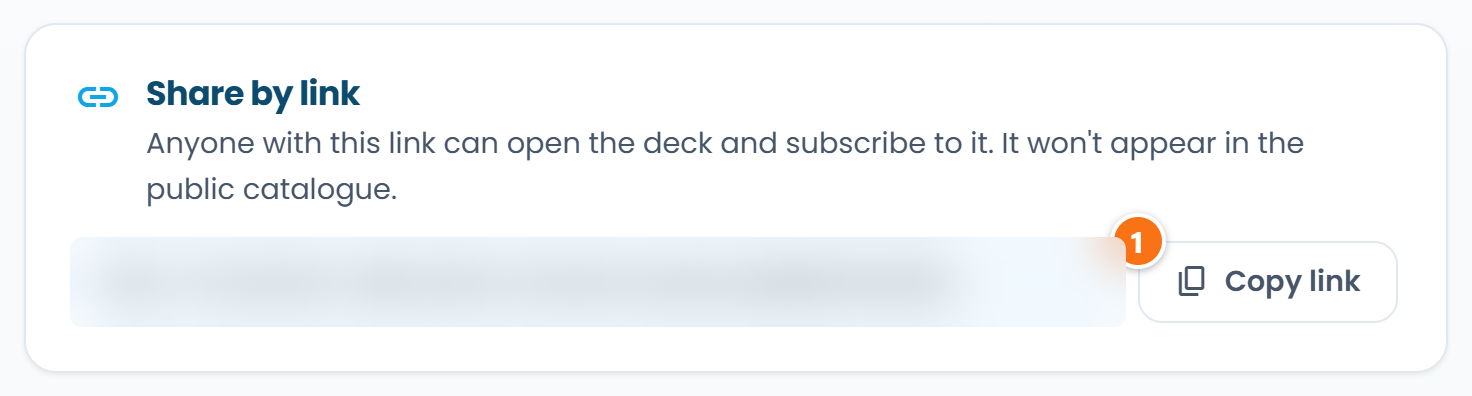 ① — Copy link. The address itself is hidden in the shot: it is the key to the deck.
Whoever opens it sees the whole deck and can press Subscribe. Subscribing puts the deck in their library, and its cards join their review queue straight away. The deck can also be tried from the link without an account, though progress is not kept that way, and the page says so plainly.
Each student learns on their own schedule: everyone has their own review history and yours does not affect it. The cards stay yours, so every subscriber sees the edits you make.
See how your students are doing
Subscriber progress is not shown automatically: the student hands it over.
- Open the deck for editing and tick Ask subscribers to share their progress with me.
- Open that deck's statistics and watch the Students tab: those who agreed appear there by name, with their figures for your deck.
The student gives consent themselves: with a checkbox as they subscribe by link, or later with Share my progress on the deck page. No separate reminder is sent to them: they see the request on that same deck page.
This is where it is easy to be misled: the tick in your deck settings is only a request. Until the student agrees on their side they will not be on the tab, no matter how much they study, and an empty tab does not mean nobody is studying the deck. Declining breaks nothing: the deck works for them exactly the same, and either of you can change your mind at any time.
FAQ
What happens to my students if I make the deck private?
The link stops opening and the deck leaves the catalogue, so no new students will arrive. Anyone who subscribed earlier keeps their access: the deck stays in their library and in their reviews.
The link reached the wrong people: how do I revoke it?
Switch the visibility to anything else and set it back to By link. The old address stops working for good and the deck gets a new one to hand out. Subscriptions survive it: anyone who subscribed through the old link keeps the deck.
Can I share a single card?
No. The deck is the unit you share. If you need to hand over a small set, gather it as its own deck: subscribing to it does not drag the rest of your cards along.
Will I see who opened the link?
No. Statistics show only the subscribers who agreed to share their progress. Plain visits to the link are not reported anywhere.
Can a student see my statistics for the deck?
No, the exchange is one-way: you see the figures of the students who agreed, and yours are not shown to them.