 RepeatMe
How to import a Quizlet set into RepeatMe
Your Quizlet set becomes a RepeatMe deck with the same terms and definitions. Straight after the import the deck asks in both directions, and after step four it also has you type the answer and match pairs. You need a RepeatMe account, the Quizlet website in a browser (the app has no export) and a set you created yourself: Quizlet does not let you export anyone else's. Study progress is left out of the export, so the cards start as new.
1. Copy the set from Quizlet
- Open the set on the quizlet.com website, click the … menu and choose Export. A window with the text of the set opens.
- Check the separators. The defaults are the right ones: Tab under Between term and definition and New line under Between rows. If you changed them, set them back.
- Click Copy text. The whole set is on your clipboard, one line per term.
2. Paste the text into the import window
- Open the import window. The arrow next to Create deck in the deck catalogue opens it too: choose Import deck from its menu.
- Type the set's name under Deck name.
- Paste the text into Or paste text. The Match columns to card sides block appears: "Column 1" holds the terms and "Column 2" the definitions.
- Choose which column becomes the question. In a language set the term is usually in the language you study, and RepeatMe keeps the studied language on the back: that side gets the pronunciation and it is the side you are asked to type. So pick "Column 2" under Front (question) and "Column 1" under Back (answer). In a set that is not about a language (dates, biology terms) the term usually stays the question.
- Click Import. The new deck's page opens.
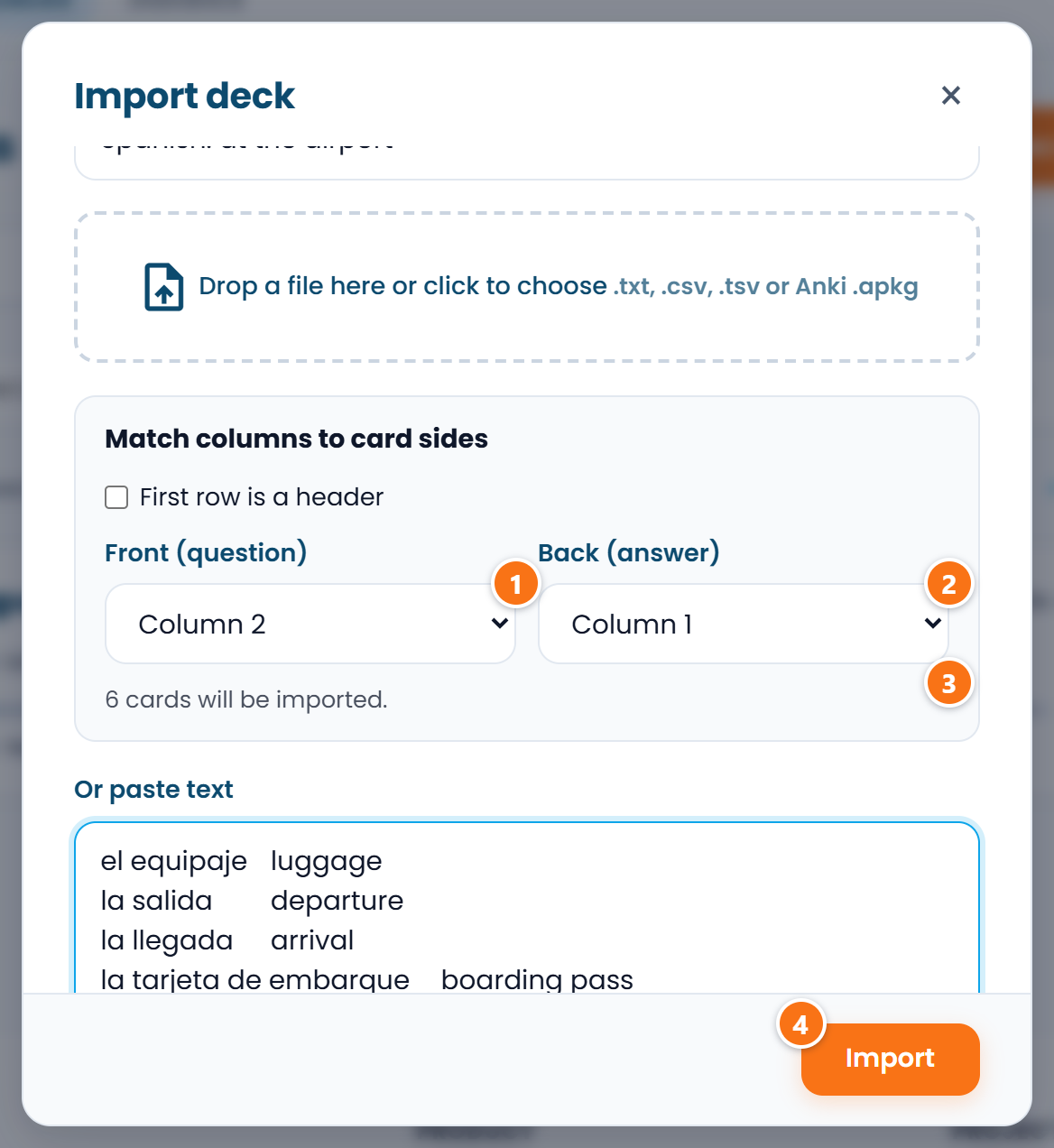 ① is the question from the second column, ② the answer from the first, ③ how many cards will be
created, ④ starts the import.
3. Set the deck's languages
An imported deck is private and has no languages, and the languages decide pronunciation and typing.
- On the deck page, open the More actions menu and choose Edit deck. The deck form opens.
- Under Front (prompt) language, choose the language of the questions, usually your own. Under Studied (back) language, choose the language of the answers; leave it empty for a deck that is not about a language.
- Optional: under Visibility, choose "By link" to hand the deck to students without listing it in the catalogue.
- Click Save.
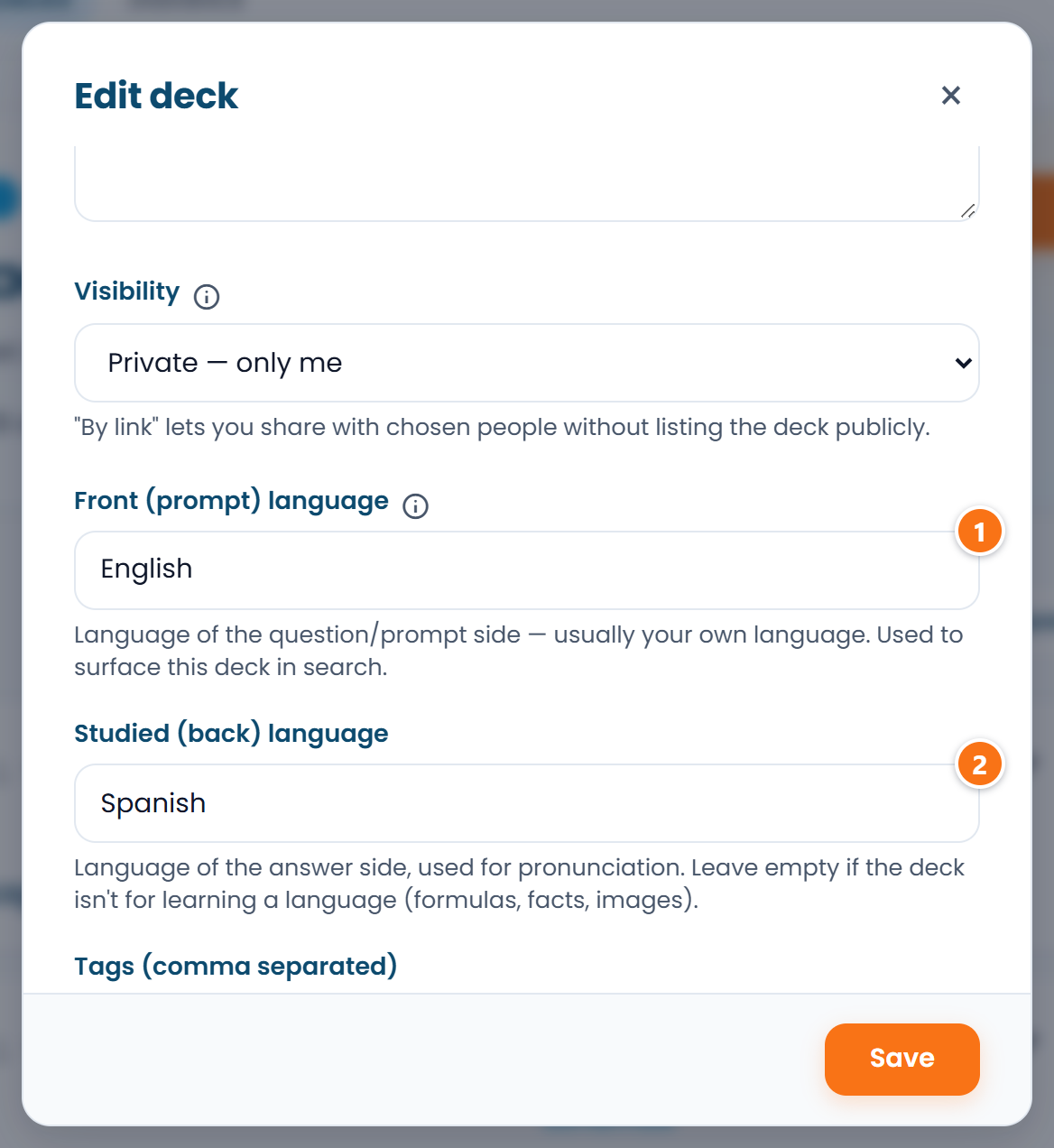 ① is the front language, ② the studied language.
4. Switch on typing and matching
After the import every card has only a flip in both directions. The other modes switch on for the whole deck at once.
- On the deck page, click Bulk edit. A window with the modes opens.
- Tick Type and Match. What the card already holds is enough for these two.
- Optional: click Add pronunciation to all cards. Every answer gets a pronunciation: a native recording when one exists, otherwise a synthesized voice.
- Optional: tick Choice and Cloze Type. They need wrong options and sentences with a gap: click Fill with AI, choose Basic AI and click Generate. The missing fields are filled in on every card in one operation.
- Click Apply changes. If you filled fields in with the AI, the window already says "Ready to save", and there the button is called Save changes. The page reloads with the new modes and pronunciation on the cards.
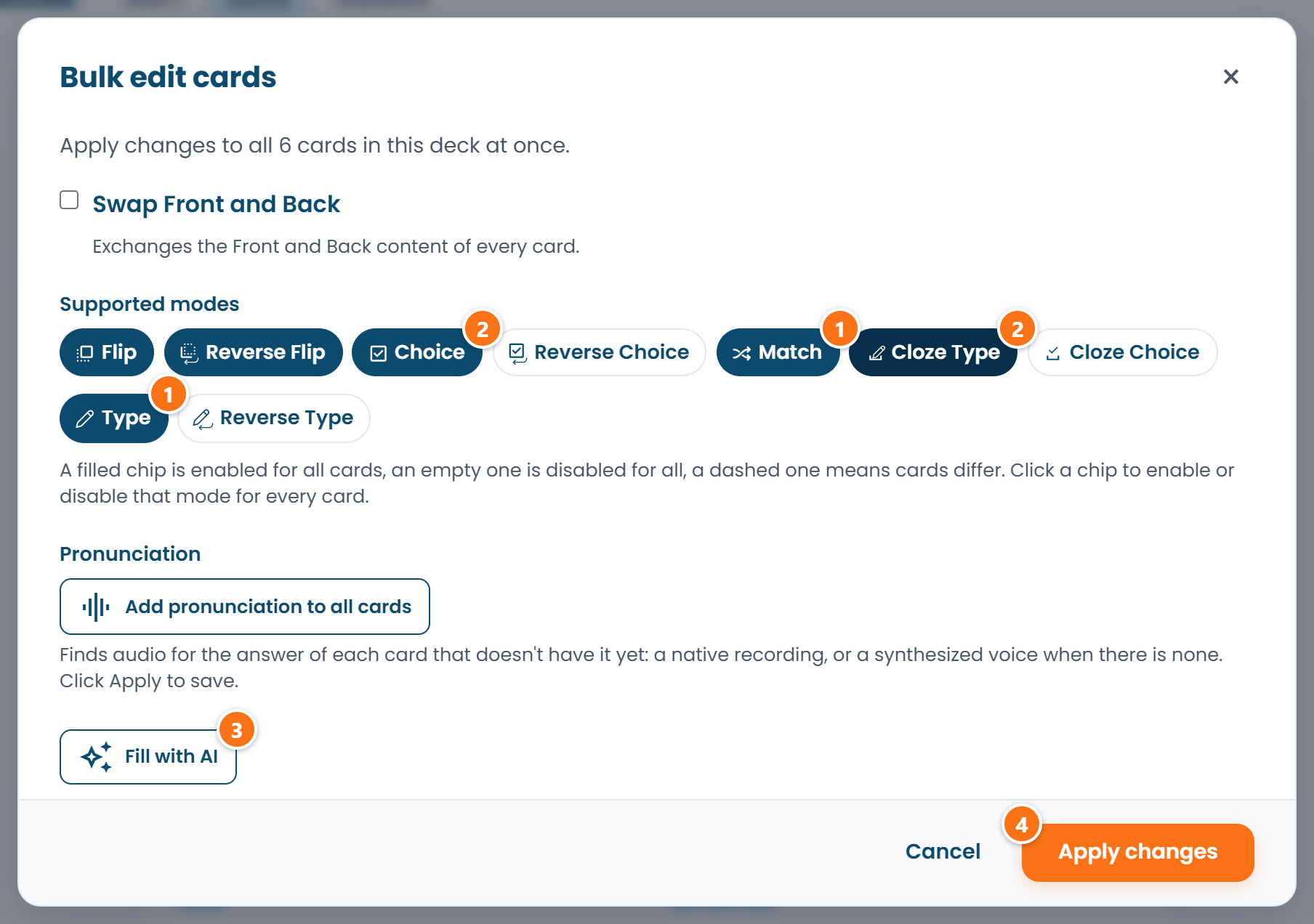 ① marks modes that need only the card's text, ② modes that need options and sentences, ③ the AI
that fills them in, ④ saving.
What comes across and what does not
| In Quizlet | In RepeatMe |
|---|---|
| Term and definition | the card's question and answer, in either order |
| Flashcards | flip and reverse flip |
| Learn | typing after step 4, choice after filling in with the AI |
| Match | match after step 4 |
| Text to speech | pronunciation of the answers, words and phrases alike, from the button in step 4 |
| Images | not transferred, since Quizlet leaves them out of the export; add them in the card form |
| Study progress and spaced repetition | not transferred; the cards start as new |
How RepeatMe differs from Quizlet is covered in the comparison.
FAQ
The set's menu has no Export item
There are two reasons. Export exists only on the website, not in the app. And only the set's creator can export it: a copy of someone else's set in your account cannot be exported either. If the set belongs to someone else, ask its creator to send you the text.
A definition was cut off after its first line
It contained a line break. Quizlet's export cannot tell a break inside a definition from the end of a card, so everything after the break becomes a line of its own with no second column, and the import skips it. Remove the breaks in Quizlet and copy the set again, or add the rest in the card form.
Can I bring my study progress over?
No, Quizlet does not put it into the export. The cards start as new, 20 a day across all decks; the cap changes in your profile. A word you already know gets through the learning phase in about three showings.
I edited the set in Quizlet. How do I update the deck?
By editing it here rather than importing again: every import creates a new deck, and progress on the old one does not move to it. Edit the card on the deck page and add new words with Add card. Editing a card keeps the progress of everyone learning it.