 RepeatMe
How to import an Anki deck (.apkg) into RepeatMe
By the end you will have a deck in RepeatMe with the cards, pictures, sound and review history: intervals and due dates carry over from Anki as they are, so what you had learned does not start over. It takes five minutes and one tickbox in Anki's export dialog. Without that tickbox the deck starts from scratch.
1. Export the deck from Anki
- In Anki, click the gear to the right of the deck name and choose Export (or choose Export from the File menu). The export dialog opens.
- Under Export format keep Anki Deck Package (
.apkg), and under Include pick the deck you want. Subdecks merge into one deck; if you want them separate, export each subdeck in turn. - Tick Include media if the cards have pictures or sound, and Include scheduling information: without it Anki leaves the review history out of the file and the deck starts from scratch. Leave Support older Anki versions unticked: the current format is read just like the old one.
- Click Export and save the file.
A package over 100 MB will not upload. If a deck with media comes out bigger, export it in parts or without media.
2. Upload the file to RepeatMe
- Open the import window. By hand: in the deck catalogue, click the arrow next to Create deck and choose Import deck.
- Drop the
.apkgfile onto the upload area, or click it and pick the file. The message "Anki package ready" appears. - Change Deck name if you like: the file name is filled in by default.
- Click Import. While the package is being read, the button says "Reading the Anki package…".
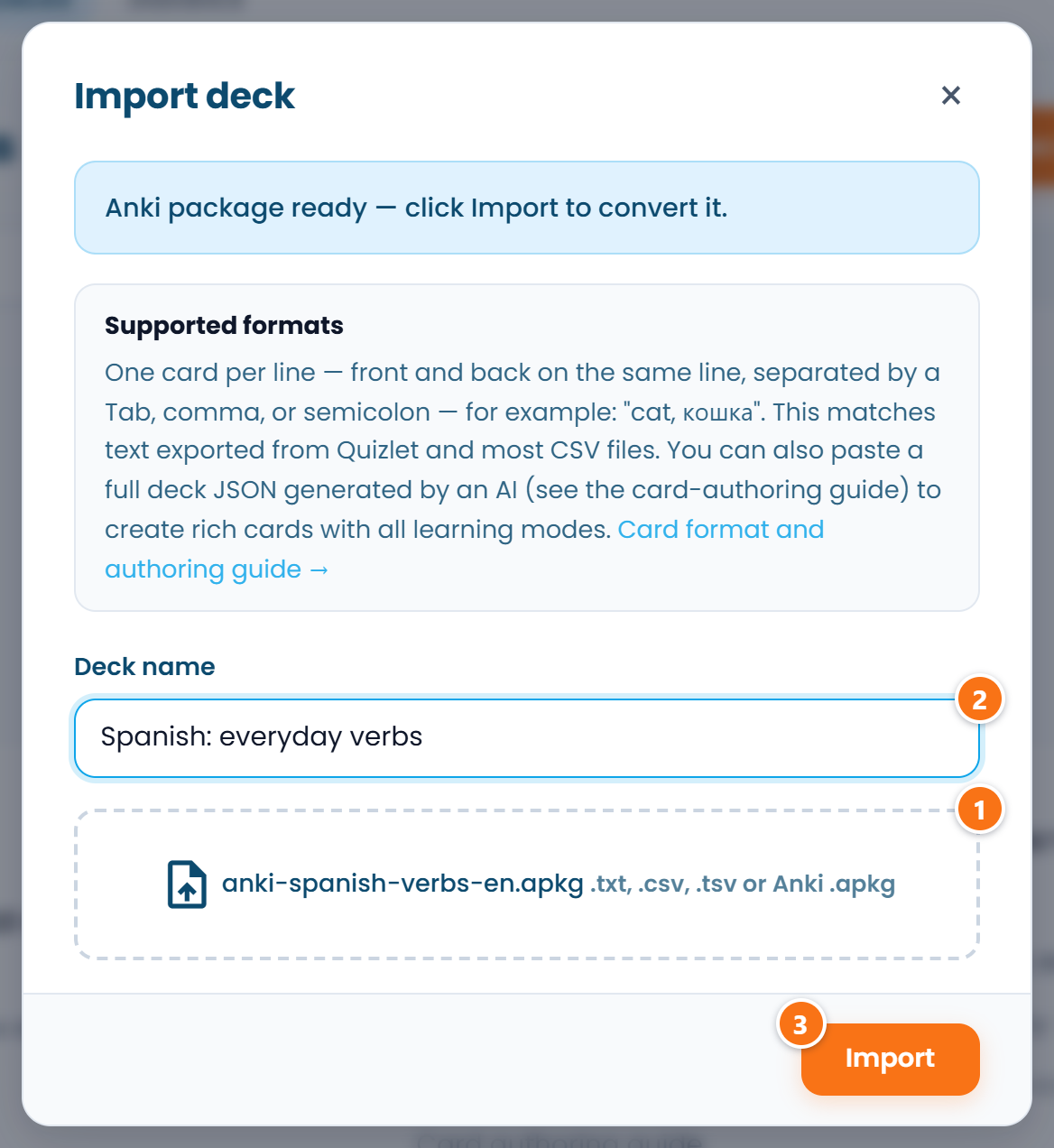 ① — the file is chosen, ② — the deck name, ③ — start the import.
3. Read the report
If everything imported cleanly, the deck opens straight away. Otherwise the import window shows a report: how many cards were imported and what had to be simplified. Read it and click Open deck.
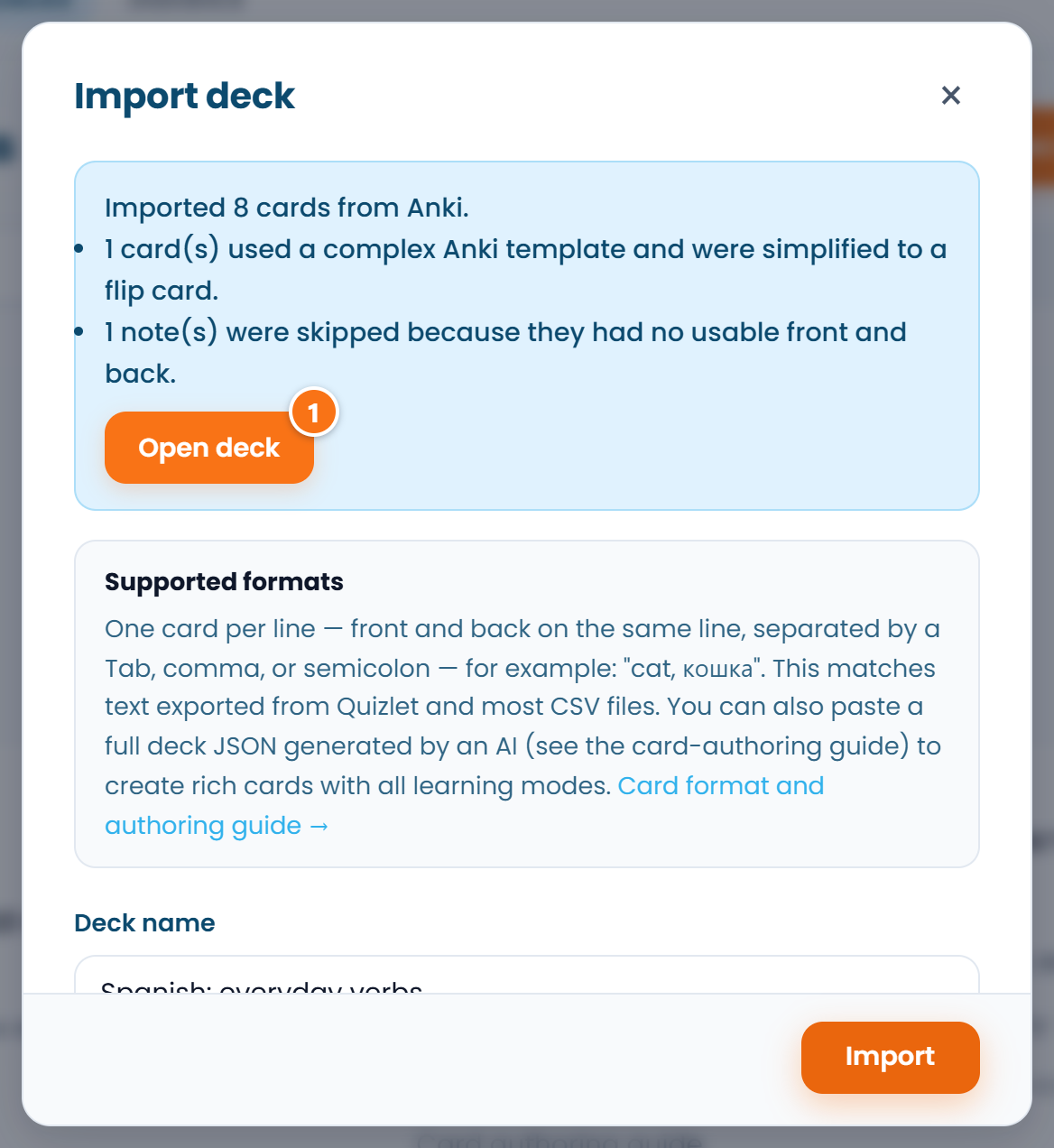 The deck already exists; ① opens it.
What the lines mean:
- Cards used a complex Anki template. The note had several fields on one side, or more than two directions. Such a card became a plain flip card with the text of every field; the harder modes can be filled in later.
- Notes were skipped. The note had no question and answer to make a card from, for example a draft with an empty back.
- Media files could not be brought over. The format is not supported, the file is over 5 MB, or your storage is full. The card is kept, without that file.
4. Set up the deck
You can study an imported deck right away, but it is private and has no languages, and the languages decide pronunciation and typing.
- On the deck page, choose Edit deck from the More actions menu. The deck form opens.
- Under Visibility, choose who can see the deck: only you, anyone with the link, or everyone in the catalogue. "By link" is the way to hand a deck to students without listing it.
- Fill in Front (prompt) language and Studied (back) language. The studied language's side gets pronunciation, and it is the side you will be asked to type.
- Click Save. The form closes and you stay on the deck page.
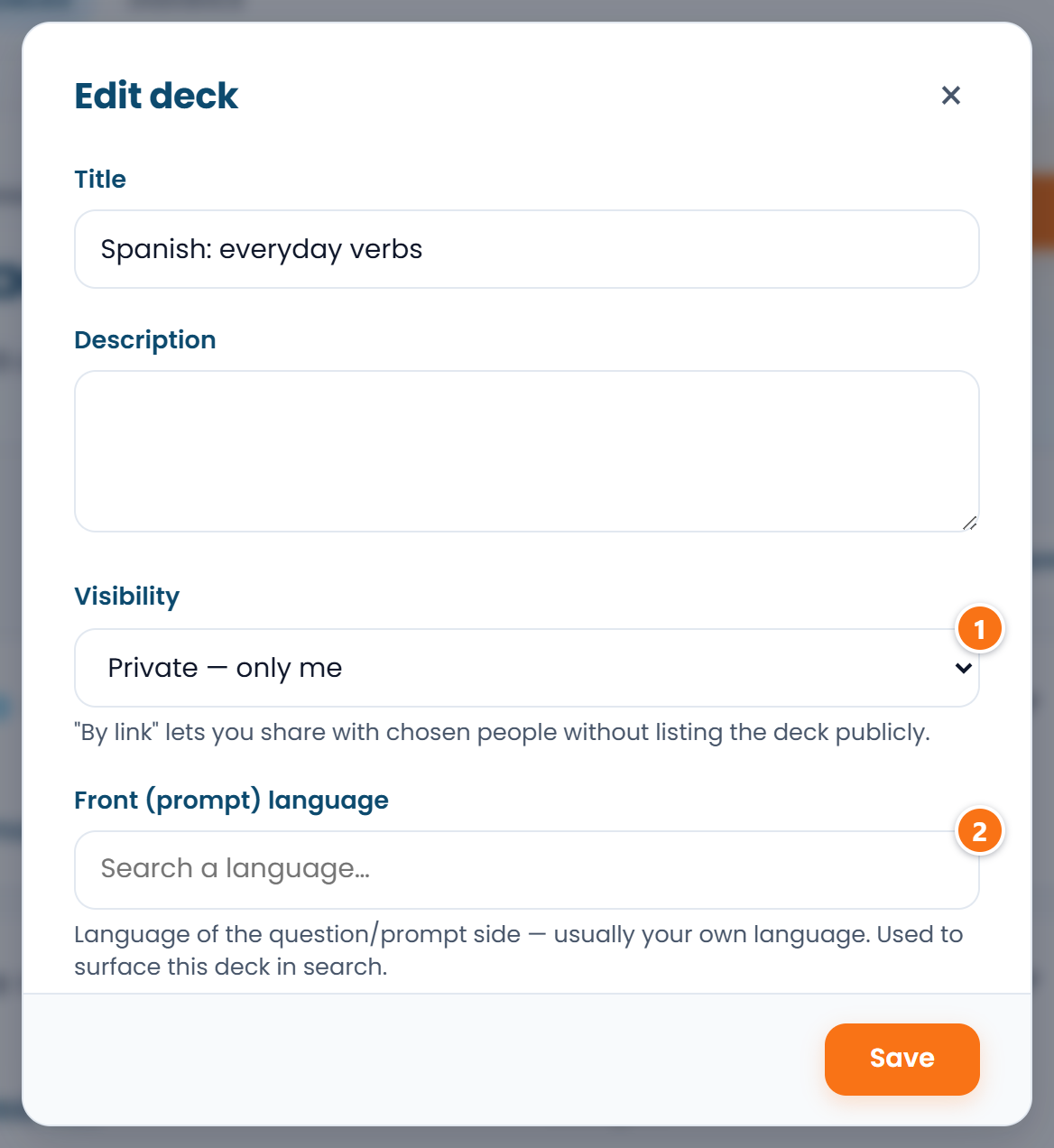 ① — who can see the deck, ② — the front language; the studied language is lower in the same form.
Now click Drill deck to run the first session.
What comes across and what does not
| In Anki | In RepeatMe |
|---|---|
| Basic | a card with the flip mode |
| Basic (and reversed card) | flip and reverse flip |
Cloze (c1::…, c2::… deletions) |
one card per deletion, in the fill-in-the-gap mode; the Back Extra field becomes the explanation |
| Pictures | stay in the text where they were, every one of them |
Sound [sound:…] |
a play button on its side of the card |
| Bold, italic, links | kept |
| A footnote field: Source, Notes, Back Extra, or a markedly smaller font in the template | the explanation, shown after the answer |
| Complex note types | a single flip card |
| Review history (when exported with scheduling) | interval, ease and the next due date come over as they are |
| Tags, subdecks, layout, colours and font sizes | not transferred |
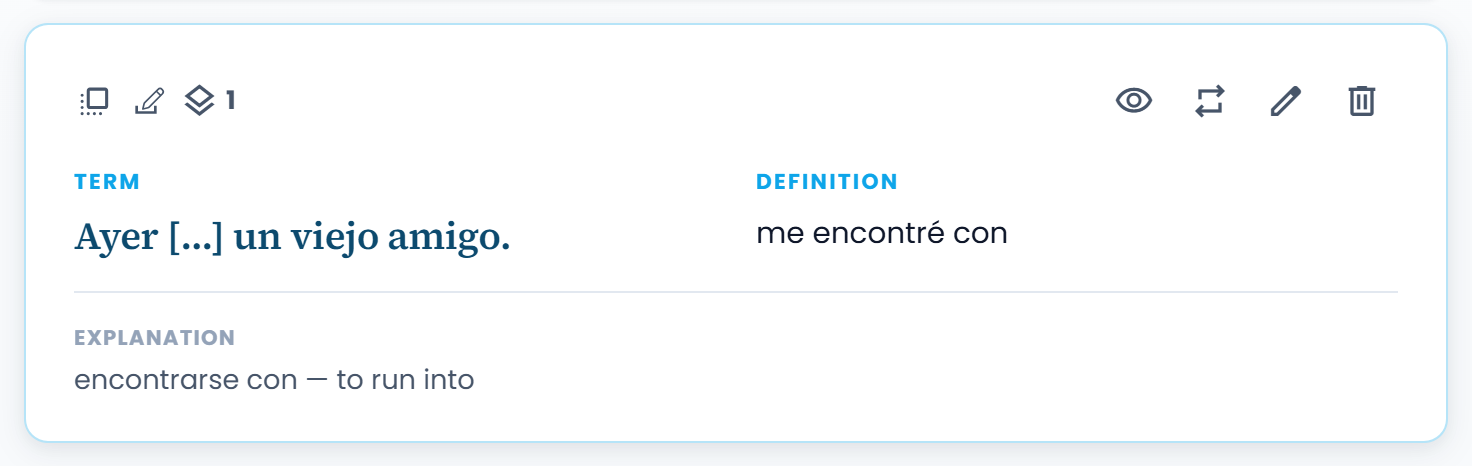 An Anki cloze note after import: the gap in the question, the answer and the explanation.
What the deck can do here that it could not in Anki (nine modes instead of templates, a link instead of a file, pronunciation on the answer side) is collected in the comparison with Anki.
FAQ
The cards imported but the review history did not
The file was exported without scheduling: in Anki's export dialog Include scheduling information is unticked by default, and the import shows a warning saying so. Export the deck again with it ticked and upload the file once more: the import creates a new deck, so you can delete the first one. Two-way cards are a case of their own: such a note takes its schedule from the weaker side, so if you never studied one direction in Anki, the card starts from scratch.
The file will not open, even though it is an `.apkg`
The message "This Anki collection couldn't be read" means the file is damaged or was only partly uploaded. Export the deck from Anki again and retry. If that does not help, export it from Anki as text in CSV and upload it in the same import window: you map its columns to the sides of the card. A CSV carries only the question and the answer, with no media or gaps.
How many cards can I import at once?
Up to 10,000 cards in one package. Split a bigger deck in Anki: in the card browser, select some of the cards, move them to a new deck and export each deck in turn.
How do I keep my tags?
Cards in RepeatMe have no tags, so note tags are not transferred. If tags divided the deck, split it into separate decks in Anki before exporting: in the card browser, filter by a tag and move the results to a new deck.
Can I update a deck by importing it again?
No: every .apkg import creates a new deck, and learners' progress on the old one does not move
to it. So after the move, edit and extend the deck here: editing a card keeps the progress of
everyone learning it.